
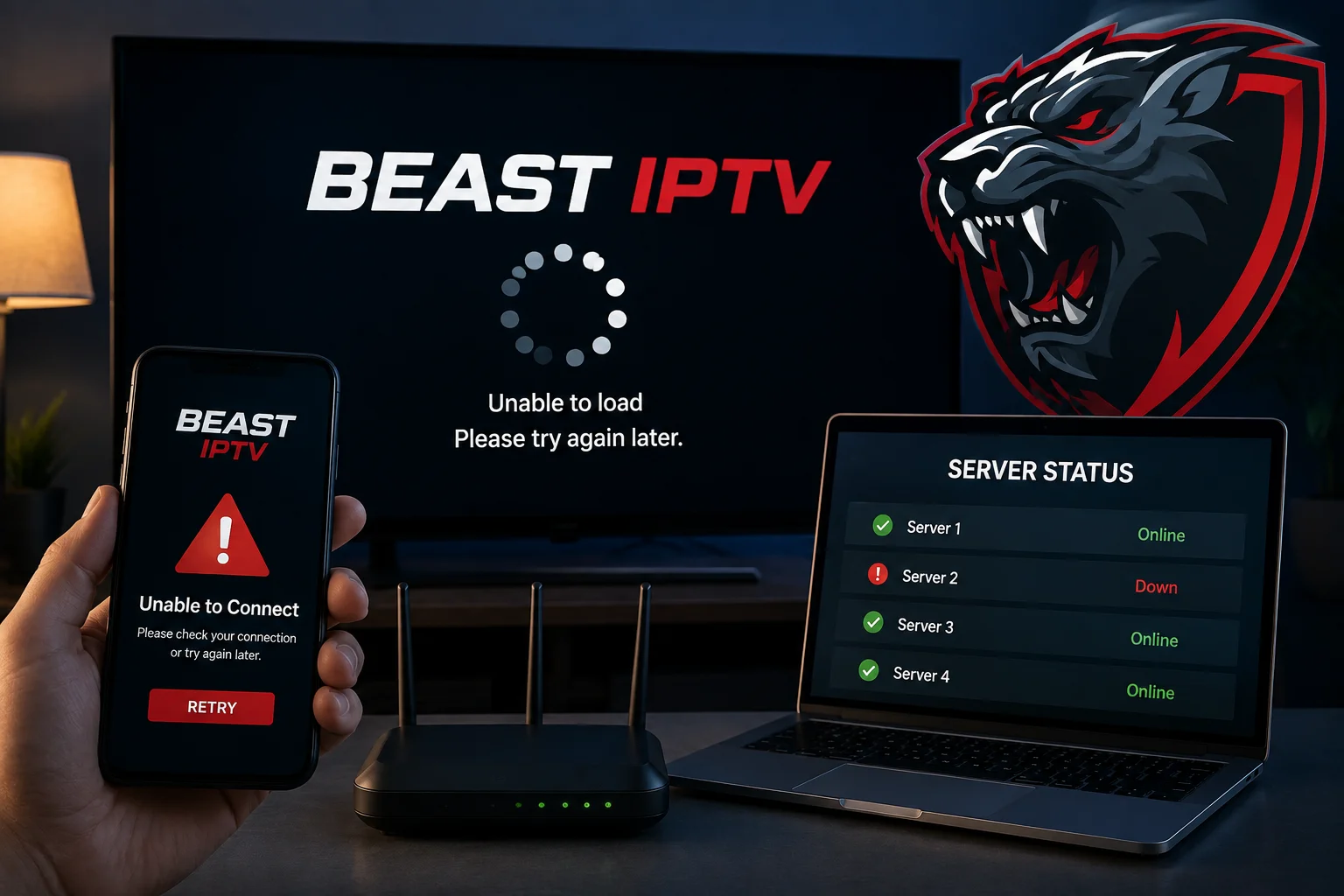

Nothing is more frustrating than sitting down to watch your favorite show only to find that your IPTV service isn't loading. The first thought many users have is, "Is Beast IPTV down?" In reality, the problem isn't always with the provider. Before assuming there's a server outage, it's important to troubleshoot a few common issues that can affect your viewing experience.
As one of the growing IPTV providers in US, Beast TV IPTV is designed to deliver a reliable streaming experience. However, internet problems, device settings, or outdated apps can sometimes make it appear that the service is offline. In this guide, we'll show you how to determine whether the issue is with your connection or the service itself, what common error messages actually mean, and what to do next.
Before You Panic, Check the Basics
The first rule of troubleshooting is simple: don't assume the server is down immediately. Many streaming issues are caused by local factors rather than the IPTV provider. Taking just a few minutes to perform some basic checks can often solve the problem without needing technical support. Ask yourself:- Are other websites loading normally?
- Is your wifi working?
- Has your streaming device been restarted recently?
- Are other apps functioning correctly?
Test Your Internet Connection First
A stable internet connection is essential for IPTV streaming. Instead of checking only the wifi signal, perform a quick speed test. Look for:- Stable download speed
- Low latency
- No frequent connection drops
Restart Your Streaming Device
Sometimes the easiest solution is the most effective. Streaming devices continuously store temporary data, and over time this can affect app performance. Try:- Restarting your Smart TV
- Rebooting your Fire TV Stick
- Restarting your Android TV box
- Closing and reopening your IPTV application
Check Whether the Problem Affects Every Channel
Here's an important test. Instead of checking only one channel, try opening several different categories. For example:- News
- Sports
- Movies
- Kids' programming
- International entertainment
Common Error Messages and What They Mean
Different error messages point to different causes, and recognizing them can save time before you reach out to support.- "Connection timed out" or "unable to connect": Usually points to an internet or wifi issue rather than the server itself. Check your connection before anything else.
- "Invalid credentials" or "authentication failed": Typically means your login details or playlist URL need to be re-entered, often due to a typo or an expired session.
- "No stream available" on a specific channel: Usually a temporary issue with that individual channel rather than the entire Beast TV IPTV service.
- App freezes on the loading screen: Often related to app cache buildup rather than a server problem, and usually resolves after clearing the cache or reinstalling.
- Blank screen with audio only: Frequently a device or app rendering issue rather than a service outage, especially after a recent software update.
How Long Do Server Outages Usually Last?
True server-side outages are relatively uncommon compared to local connection issues, but when they do happen, most are resolved within a short window. Planned maintenance is typically scheduled during lower-traffic hours and communicated in advance, while unplanned issues are usually addressed as quickly as possible once identified. If you've ruled out your internet, device, and app as the cause, and the issue is affecting every channel rather than just one or two, it's reasonable to suspect a broader service issue. Checking provider announcements, covered next, is the fastest way to confirm.Look for Provider Announcements
Professional IPTV providers often notify customers about planned maintenance or service updates. Before assuming your subscription has failed, check whether your provider has shared information through:- Customer support
- Official website
- Telegram community
- Email notifications
- Social media pages
Is the IPTV App the Problem?
Not every playback issue comes from the IPTV server. Applications occasionally require updates. Signs your IPTV app may need attention include:- App crashes
- Login errors
- Slow loading
- Missing menus
- Freezing during startup
Try Another Device
One of the quickest ways to identify the source of a problem is to test your account on another compatible device. For example:- If your Smart TV isn't working, try your phone.
- If your Fire TV Stick has issues, test on a tablet.
- If your Android TV box freezes, check on a laptop.
Avoid Changing Multiple Settings at Once
When something stops working, many users immediately begin changing every available setting. This often creates even more confusion. Instead:- Make one change.
- Test the service.
- Observe the result.
- Continue only if necessary.
Setting Up Alerts So You Know Before You Sit Down to Watch
A little preparation can save you from running into a problem right when you want to watch something. A few habits worth building:- Join your provider's Telegram or announcement channel so planned maintenance notices reach you before you sit down to stream.
- Turn on email notifications if your provider offers them, since these often include advance notice of scheduled downtime.
- Bookmark the official status or support page, if one is available, so you can check it in seconds rather than searching around.
- Follow official social media pages for real-time updates during unexpected outages.
Why Reliable Providers Matter
One of the reasons experienced users carefully compare IPTV providers in US is reliability. A dependable provider invests in:- Stable server infrastructure
- Regular system maintenance
- Faster issue resolution
- Consistent performance
- Customer support
When Should You Contact Support?
After checking your internet, restarting your device, testing multiple channels, and verifying your IPTV app, it may be time to contact customer support. Provide useful information such as:- Device type
- IPTV application used
- Error message (if any)
- Approximate time the issue started
- Whether all channels or only specific channels are affected
Prevent Future Streaming Interruptions
Although occasional technical issues are unavoidable with any online service, you can reduce future problems by following a few best practices:- Keep your IPTV application updated.
- Restart your streaming device regularly.
- Use a reliable internet connection.
- Avoid overcrowded wifi networks during streaming.
- Install software updates for your Smart TV or streaming device.
- Save your provider's support contact information.